
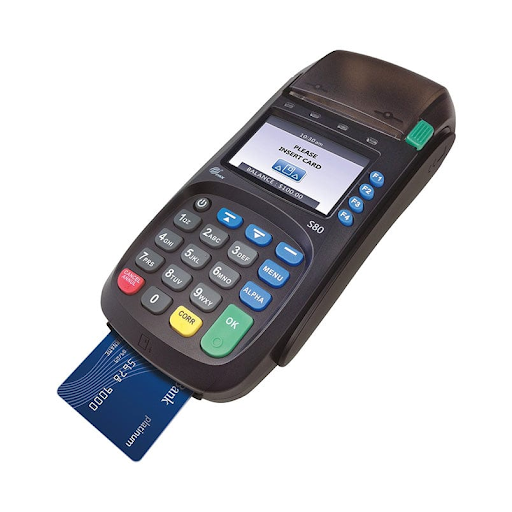
In today’s fast-paced business environment, having a reliable payment processing system is essential. One of the popular choices among retailers and service providers is the Pax credit card machine, known for its durability, ease of use, and secure transactions. Proper installation of this device ensures seamless payment processing, reduces downtime, and enhances customer satisfaction. Whether you are a small business owner or managing a large retail operation, understanding how to set up your Pax credit card machine correctly is crucial.
This guide will walk you through step-by-step installation tips, highlight best practices, and provide insights on how to make the most out of your Pax terminals.
Understanding Your Pax Credit Card Machine
Before beginning the installation, it’s essential to understand what makes Pax credit card machines stand out. Pax devices are versatile, supporting multiple payment types, including magnetic stripe cards, EMV chip cards, and contactless NFC payments like Apple Pay and Google Pay. Their modern interface and robust security features make them ideal for businesses looking to streamline transactions and reduce the risk of fraud.
The two main components of your setup include:
- Pax Terminals: These are the physical devices where customers insert, tap, or swipe their cards.
- Connection Interface: Depending on your setup, this can be via Ethernet, Wi-Fi, or a mobile network.
Understanding these components will help ensure a smoother installation process.
Step-by-Step Installation Guide
1. Unboxing and Initial Setup
Start by carefully unboxing your Pax credit card machine. Ensure that you have all necessary components: the terminal, power adapter, cables, and user manual. Check the device for any visible damages before proceeding.
- Place the terminal on a flat, stable surface near your point-of-sale (POS) system.
- Connect the power adapter to the terminal and plug it into a nearby power outlet.
- Turn on the terminal using the power button.
Taking the time to set up the terminal properly at the start will save you troubleshooting time later.
2. Connecting to the Network
Your Pax terminals can operate via Ethernet, Wi-Fi, or 4G connections. The choice depends on your business’s network availability and security preferences.
Ethernet Connection:
- Plug the Ethernet cable into the terminal and the other end into your router.
- The terminal will automatically detect the network and establish a connection.
Wi-Fi Connection:
- Navigate to the settings menu on the terminal.
- Select “Wi-Fi Setup” and choose your network from the available list.
- Enter your Wi-Fi password and confirm the connection.
Ensuring a stable network connection is critical for smooth transaction processing. Unstable connections can result in declined transactions and frustrated customers.
3. Configuring Terminal Settings
After connecting to the network, it’s time to configure your Pax payment terminals. Key settings include:
- Date and Time: Correct date and time are essential for accurate transaction records.
- Merchant ID and Terminal ID: Input the credentials provided by your payment processor.
- Receipt Preferences: Decide whether to print receipts automatically or offer digital receipts.
- Language Settings: Set the language according to your business’s needs.
Carefully following your terminal’s manual ensures all configurations are accurate, reducing potential errors during transactions.
4. Integrating with POS System
For many businesses, Pax terminals integrate directly with point-of-sale systems to streamline payment processing.
- Connect your terminal to your POS using USB, Bluetooth, or serial connection depending on your setup.
- Test the integration by performing a small test transaction.
- Ensure that transaction data syncs correctly with your POS system for accurate reporting.
Proper integration not only simplifies accounting but also improves customer experience by speeding up the checkout process.
5. Updating Software and Security
Pax credit card machines come pre-installed with basic software, but it’s essential to update them to the latest version. Updated software ensures:
- Compatibility with the newest payment protocols
- Enhanced security features to protect sensitive cardholder data
- Reduced risk of software-related errors
Access the terminal’s settings menu and select “Software Update” to check for the latest updates. This step is crucial for maintaining compliance with PCI DSS (Payment Card Industry Data Security Standard) regulations.
6. Training Staff
Once the installation is complete, it’s important to train your staff on using the Pax terminals efficiently. Key training points include:
- Processing different types of payments (chip, swipe, contactless)
- Handling declined transactions and troubleshooting common errors
- Printing and issuing receipts correctly
- Securing terminal and transaction data
Well-trained staff minimizes transaction delays and enhances the overall customer experience.
7. Testing and Troubleshooting
Before fully deploying your Pax credit card machine, conduct thorough testing:
- Perform test transactions with various card types
- Check connectivity and transaction speed
- Confirm that transaction records sync with your POS system
- Review receipt printing and digital receipt functionality
If you encounter issues, consult the user manual or reach out to your provider’s technical support. Regular testing and maintenance help ensure your terminals function reliably.
Best Practices for Maintaining Pax Terminals
Proper care of your Pax terminals extends their lifespan and ensures consistent performance:
- Keep terminals clean and free from dust or debris
- Avoid placing them near heat sources or liquids
- Regularly update software and firmware
- Conduct periodic transaction tests to identify issues early
By adhering to these best practices, businesses can reduce downtime, prevent technical issues, and maintain smooth transaction processing.
Conclusion
Installing a Pax credit card machine may seem daunting at first, but following a structured approach ensures a smooth setup. From unboxing and connecting to the network, to configuring settings and integrating with your POS system, each step is essential for optimal performance. Regular software updates, staff training, and proper maintenance further enhance the functionality of your Pax terminals.